
Since Apple Inc. announced no longer posted first week’s sales data, its true sales number is still a mystery so far. But American operator Sprint said the booking number of iPhone 7 is close to 3.75 times that of last year’s booking number of iPhone 6s. America’s fourth largest operators, t-mobile also said the booking number of iPhone 7 is 4 times of the best-selling model of iPhone. Why do you want to buy iPhone 7 ? Some people said they love the iPhone 7’s improvement of camera function.
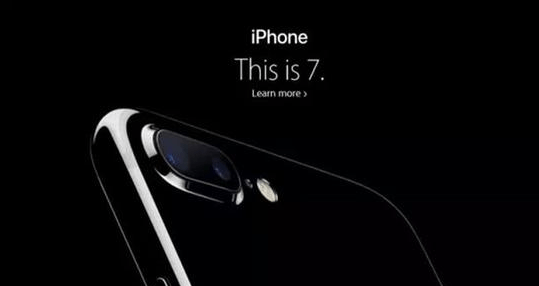
So how does iPhone 7 improve its camera function? iPhone 7 is said could be up to 3x longer exposure compared to iPhone 6s. And iPhone 7 Plus even have two camera system, one is dual 12 MP rear camera and the other is 7 MP front camera. Since iPhone 7 has the best iPhone camera ever, you may take a lot of pictures and selfie, then, you may certainly want to keep collection of photos to your computer. So many people may ask the question, how to copy so many photos and other files to computer? This article gives you tutorials on how to copy your iPhone 7 files to PC.
Using iTunes

If you’re using Windows, you can copy iPhone 7 files to PC with iTunes.
1. Connect the iPhone 7 to the computer
2. Activate iTunes on the computer
3.Click the “iPhone” button at the upper right part of the interface after iTunes identifies the device.
4. click Photos or other relevant tab under settings on the left
5. Check the box to “Sync Photos” or relevant tab
6. Select “Choose folder…” from the drop down menu
7. Browse to the desired folder
8. Select the files folder you’d like to sync
9. Click the “apply” button at the lower right corner.
Using iCloud

You can also use the Apple iCloud service to copy iPhone 7 files to PC.
1. Enable iCloud on your iPhone in Settings
2. Download the iCloud Control Panel onto your computer
3. If you’re connected to WIFI, all photos that you take with your iPhone will be saved within seconds directly to your computer.
4. If you’re not connected to WIFI when you take the pictures, they will be synced to your computer the next time you have WIFI connection.
But iCloud won’t transfer videos recorded with your iPhone 7.
Using Windows Explorer

The easiest way to copy files from your iPhone 7 to Windows PC is to use Windows Explorer, but you have to do the following methods.
Using Windows Plug & Play
You can connect your iPhone 7 to the computer or your laptop without iTunes running and wait for a popup asking you what you want to do with the device. Then select “View Content”, find your files through the folders that are displayed, after that you can copy the files from Windows as usual
Using iPhone 7 as Digital Camera in Windows Explorer
After your iPhone 7 plugged into the PC, you can also try this method: Open “My Computer”, find the iPhone 7, it will appear under Portable Devices section. Then open iPhone 7 to find your files, select the files you want to copy and copy them to the desired location of your computer.
In either case, unlock the iPhone before beginning, unless the photos may be invisible.
 blog.easyacc.com