
You can make your laptop run longer on its battery by turning off or reduce all the things that expend power in your computer. If you are going on a long trip, or just taking your laptop to a local coffee shop, use these tips to help your laptop battery power last longer.
Display
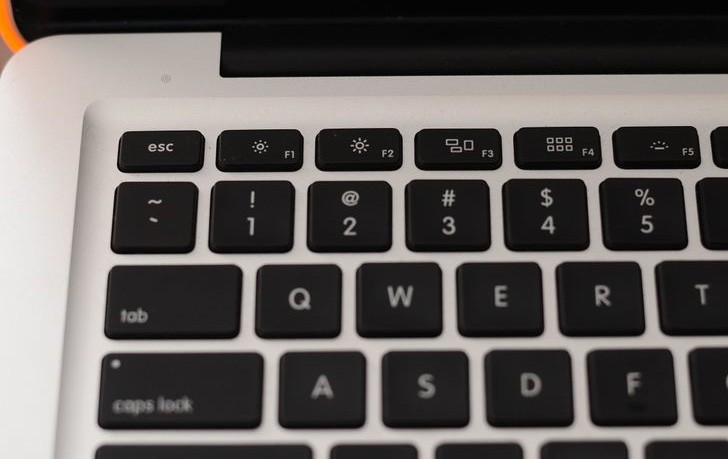
1.Reduce the LCD’s brightness level. If you use your laptop in a well lit area or outdoors on a sunny day, try setting it at two or three bars.
2.Turn down the screen resolution. The method for doing this will depend on your laptop make.
Right click on the desktop in Windows 7. Select the Screen Resolution. Turn down the resolution.
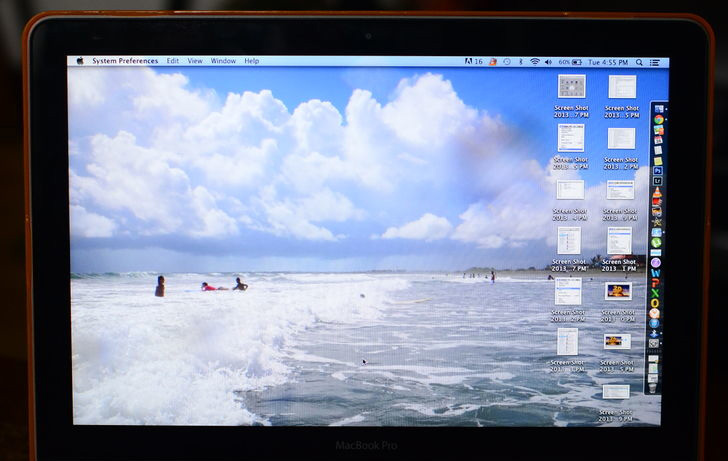
3.If your laptop has an OLED based display, avoid displaying white images. OLED screens consume a lot less power displaying blank.
Sound
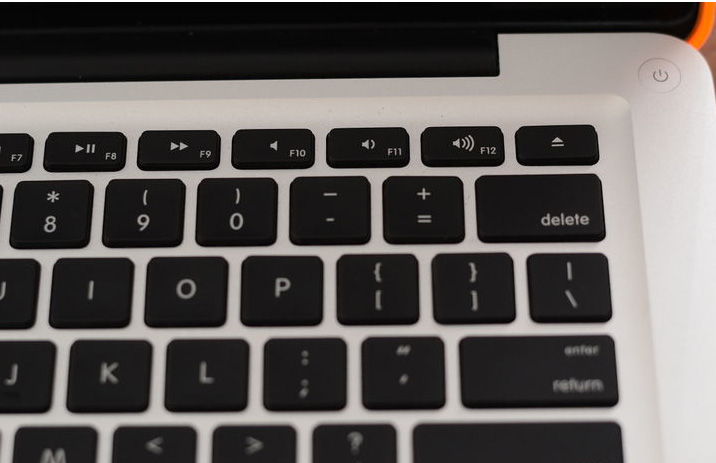
1.Turn the volume level down, or mute it, if you do not plan to use it.
The environment

1.Avoid extreme temperatures. Batteries rely on basic chemistry and will die faster at extreme temperatures. Try to charge and use the battery at room temperatures.

2.Use a cooling pad when using a notebook computer on your lap. But if it’s a USB pad then don’t use it as it will most likely use up more battery rather than to conserve it.
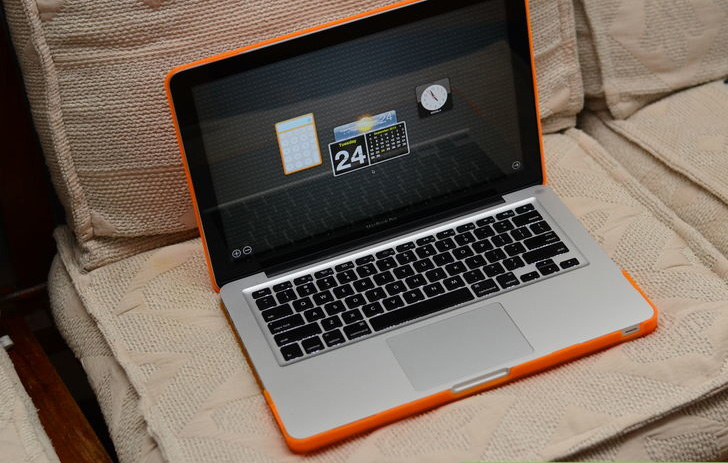
3.Avoid propping your laptop on a pillow, blanket, or other soft surface that can heat up.
Peripherals

1.Unplug external devices such as a USB mouse or an external drive.

2.Avoid using a CD or DVD. If you store a copy of data you need on an optical disc, copy it to your laptop hard drive or a thumb drive before traveling. Optical drives consume large amounts of power to spin up CDs and DVDs. Try to avoid applications that keep your hard drive or optical drive spinning. Need to play music? Try to use your handheld MP3 player, rather than playing songs on your computer. Playing songs on your computer will keep the hard drive working which uses energy. Turn off the auto save feature on MS Word or Excel. Constant saving will keep your hard drive turning and using energy.
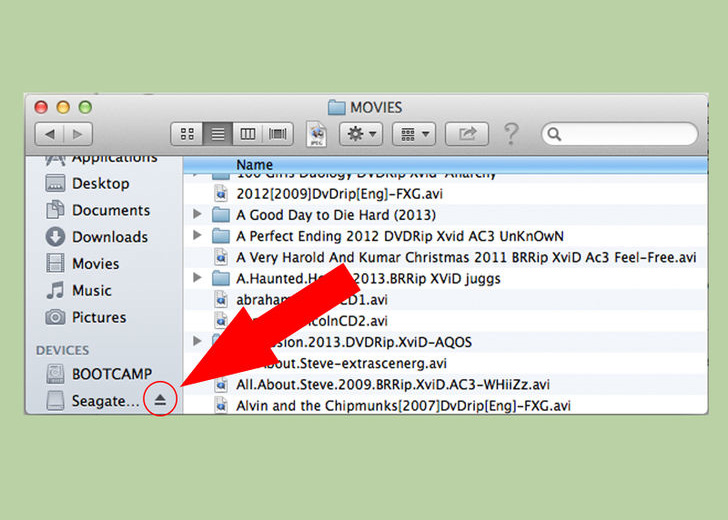
3.Eject external devices such as pen drives, DVDs, hard disks, etc., if not in use.
Cleaning
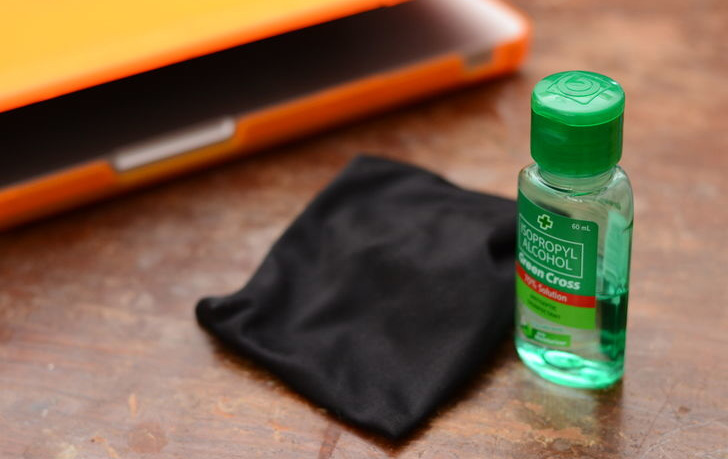
1.Clean the battery contacts. Clean the battery’s metal contacts with rubbing alcohol on a damp cloth. Clean contacts increase the energy efficiency.
The battery itself
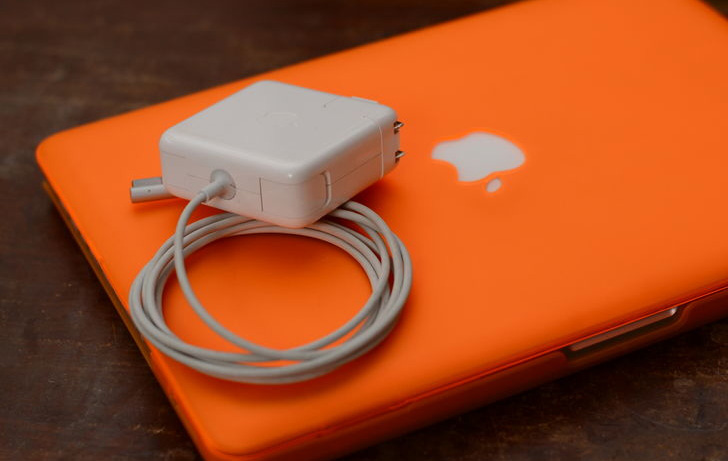
1.Keep the battery fresh. Batteries leak power if they aren’t used fairly soon after charging. If you use your “full” battery 2 weeks after you last charged it, you may discover it is empty.
2.Do not charge all of the way. Instead of charging the battery to 100% each time, fix the maximum charge limit to 80-85%. This will help in the long run by reducing the battery degradation with time. Sony VAIO has inbuilt option to set this.
 blog.easyacc.com