

The best MacBook series in Apple’s lineup is known for its superior build quality and great user experience. But that doesn’t mean they’re indestructible, and if you do something ungraceful to your MacBook, it can significantly shorten its lifespan.
If you want to avoid damaging your Apple laptop to the point of having to pay for an expensive repair or replacement. Please try to avoid the following operations, and you will have a good experience.
- Avoid too high temperature
While leaving your laptop plugged in won’t damage the battery as much as it once did, it may have some side effects: heat. This can be a real problem for your MacBook.
This is because high temperature is a major factor in battery degradation. The last thing you want is for your laptop to not last long enough on a single charge.
Heat can also affect your MacBook’s performance. If its internal components get too hot, they become restricted, which means your laptop will reduce its power in order to keep the temperature from getting too high.

This is especially important for the fanless MacBook Air. If you’re going to be running heavy tasks like gaming or video on your MacBook, you’ll want to make sure it’s adequately cooled (perhaps with an external cooling pad) and that the vents remain clear and uncovered. This helps ensure the computer doesn’t get too hot.
- Avoid not turning off the computer for a long time
At the end of a busy day at work, you might be tempted to simply close the lid of your MacBook and put it to sleep. After all, it allows you to start working faster the next day. However, it’s actually best to shut down your laptop when you’re done using it—or at least a few times a week.
When your MacBook is asleep, it’s actually still on, albeit in a low-power mode. This means it is still using battery power. While it may only drain the battery slowly, within a day or two it may drain most of the laptop’s remaining power.

Beyond that, the more you use your MacBook, the more Mac apps and processes you have running in the background. It’s a good idea to reset these from time to time to make sure everything is running smoothly (the common tech support fix of “turn it off and on again” exists for a reason).
- Avoid using incompatible chargers
We all know that Apple’s original chargers and accessories are expensive. You might save money by buying a knockoff replacement, but you might be ruining your MacBook.
To be clear, we’re not saying you should only buy Apple chargers. There are many companies that offer great alternatives, backed by plenty of positive reviews and a proven track record of use.

But there are also some unprofessional companies that use cheap and unreliable parts in their chargers that can burn out your battery. When it comes to something as important as charging your expensive MacBook, play it safe rather than using a device that could be a serious fire hazard.
- Avoid completely running out of storage space
When it comes to file storage, filling up your Mac’s storage space can have negative consequences, affecting the device’s performance. This is because when your MacBook starts running out of space, its performance may slow down. On top of that, the tight space means you might have trouble saving files or installing new apps. Using a Mac in this situation becomes a real pain.
It’s important to note that you can’t upgrade your MacBook’s internal storage after purchasing the device. Of course, you can connect an external drive, but that’s not great for portability. When you buy a MacBook, make sure you choose the amount of storage you think you’ll need in the future (plus a little extra), rather than just the amount of storage you need right now.
Apple has several options for managing your storage space and making sure it never gets too low. In the Settings app, select General > Storage. Under the Recommended heading, you might see options that include offloading files to iCloud, deleting TV shows and movies after watching them, and automatically clearing trash. You can also find out which apps are taking up the most space and uninstall them if you no longer need them.
There are also third-party apps that can help, such as removing duplicate photos or showing which files are taking up the most space on your Mac. Remember to clean up your storage and you should get a noticeable performance boost.
Recommendation:

- FOR LATEST MACBOOK AIR 13.6 INCH 2022 TOUCH ID CASE — Only compatible with MacBook Air 13 2022 release Model A2681 with M2 Chip
- ATTENTION — Please kindly check the model number “Axxxx” on the back of the laptop before your purchase, make sure you choose the exact same model number as the listing title stated “A2681”. The case is not compatible with 2021-2018 MacBook Air 13 inch (Model: A2337 M1 / A2179 / A1932) & 2017-2012 Older MacBook Air 13 inch (Model: A1466 A1369).
- CASE DIMENSIONS & WEIGHT — The case included top part and bottom part. Top part is 13.38 x 8.85 x 0.3 inch. Bottom part is 13.38 x 8.85 x 0.48 inch. The whole case only weights 9.87 OZ. You’ll feel your laptop more natural in hand.
- FULLY VENTED & DESIGN — No cut out design. Full vented for safe and heat disbursement. Easy access to all ports and features, you can plug your charger, cable, or headset without removing the case.
- WARRANTY — TWOLSKOO offers ONE year warranty on the case and keyboard cover.
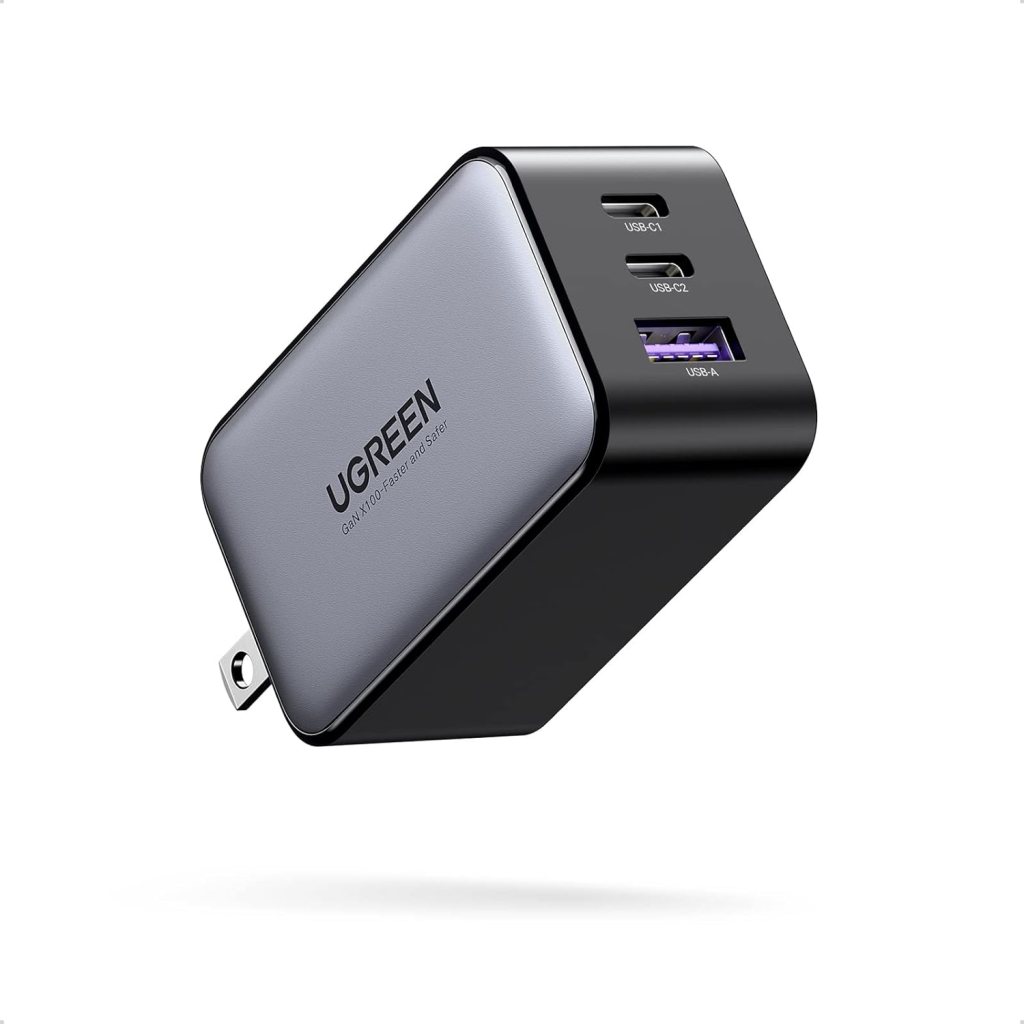
- 65W High Speed Single Port Charger: Connect a single USB C device to get a 65W max charge; Charge the MacBook Air M2 to 51% in 30 Minutes
- One Charger, More Devices: Ugreen’s 65W USB C charger provides an enormous 65W of charging power; enough to fast charge phones, tablets, and laptops; All from a single charger
- Travel Friendly, Compact Design: Thanks to a cutting edge GaN chip, Ugreen’s 65W USB C charger is 50% smaller than the original 61W USB C charger; A foldable plug provides more portability and a better travel experience
- Power Dispenser System: An intelligent system that reallocates power to protect and extend your device’s health
- Wide Compatibility: Broad support for multiple devices, MacBook Pro 16, MacBook Air M2 2022, MacBook Pro 13” M2, iPad Pro, iPhone 15 Pro 14 13, Galaxy S23 Ultra S22, Switch, Steam Deck, and More
 blog.easyacc.com