
As we are in a mobile world now, when we wanna buy a new smarphone or update our smartphones to a new operating system, here always come the questions about “battery” at the first time.
Well, taking the newly released iPhone 7 as an example, for most buyers, their first google for iPhone 7 is about How Long to Charge iPhone 7 First Time, as surveyed. And also come similar questions about “how to increase iPhone 7 battery life”, “how to fast charge iPhone 7”,ect. Surely, we understand that, as we can’t live without it, from mobile pay for a Starbucks even to swipe the smartphone to get out an office.
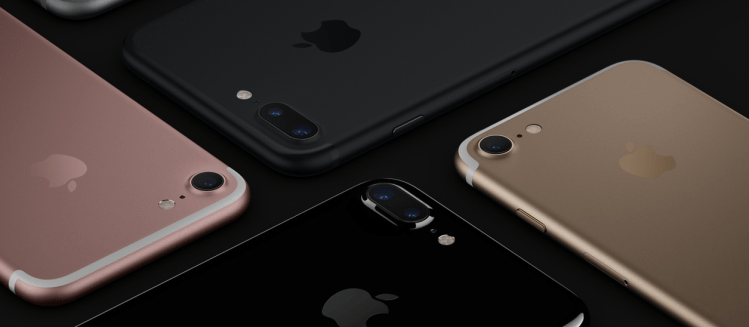
Well, have you ever thought that, still taking the iPhone 7 as an example, the battery capacity of iPhone 7 or iPhone 7 plus has been limited to a fixed capacity. If we wanna use it longer at a time, the only way is to wisely settle with its operating system, iOS 10. If you do agree with me, please keep reading.

In fact, till now, many users have complained about iOS 10 battery drain, especially those upgrading ever iPhone devices to iOS 10. So how to fix iOS 10 battery drain?
#1 Check Your Apps
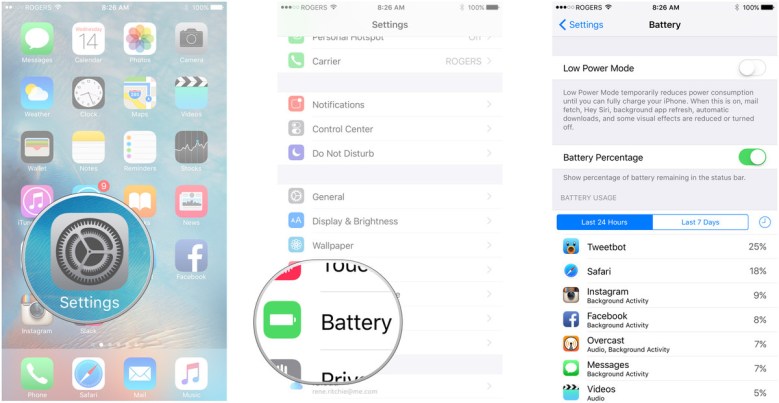
Please remember that apps are always the battery-consuming heavier!!! If your battery drain starts acting with iOS 10 on board, then the first place you’ll want to look is: Settings > Battery and you can get a clear breakdown of foreground and background power usage.
#2 Limit Location Services
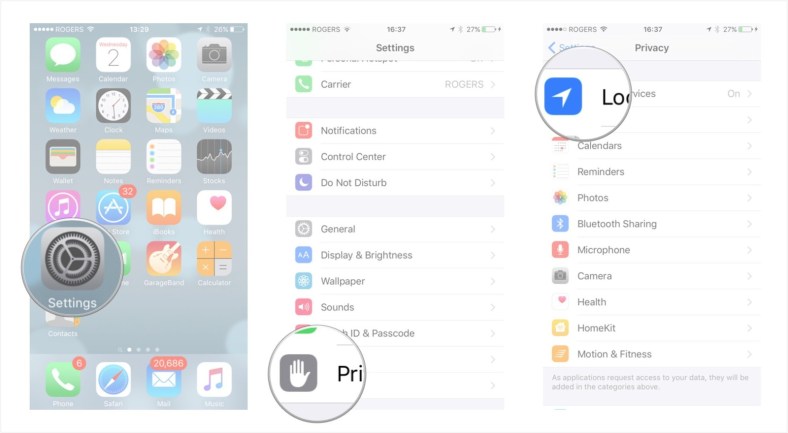
Properly reducing the amount of times on location services is undoubtedly a nice fix to iOS 10 battery drain, which is well proved since the first iOS devices released.
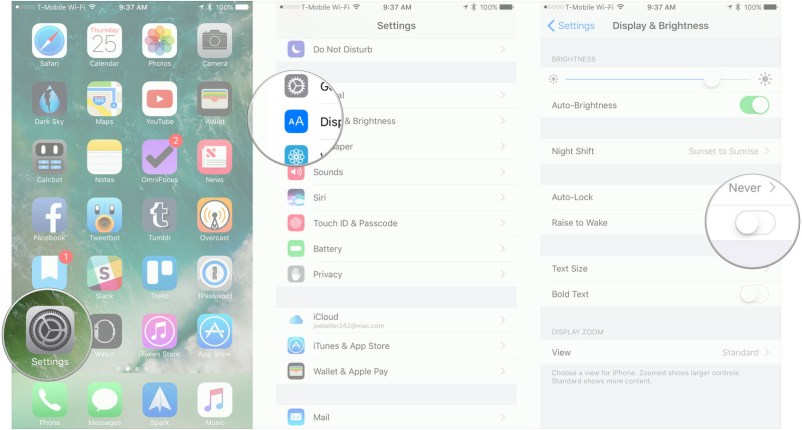
#3 Disable Raise to Wake
Along with the release of iOS 10, the new feature, known as Raise to Wake, is real now, which could help reduce the press times of Home button; while, it impacts iOS 10 battery drain.
You can dismiss that under: Settings → Display & Brightness → Raise to Wake.
#4 Use Low Power Mode
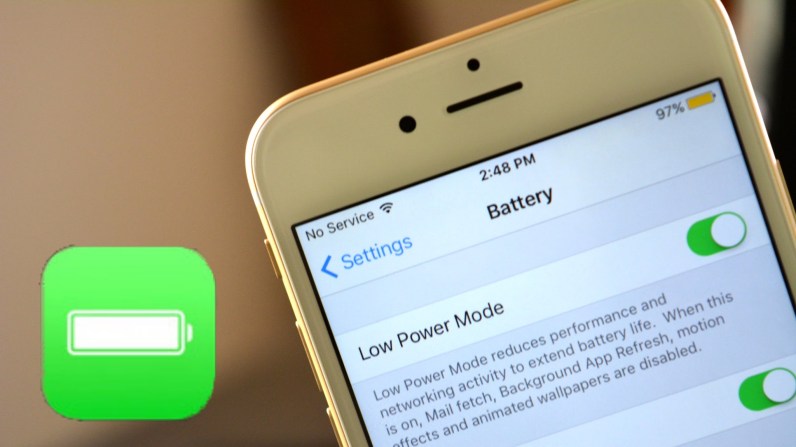
Whenever you want to save some extra battery juice on your iPhone, you can always trust on Low Power Mode feature.
#5 Use Wired Headphones
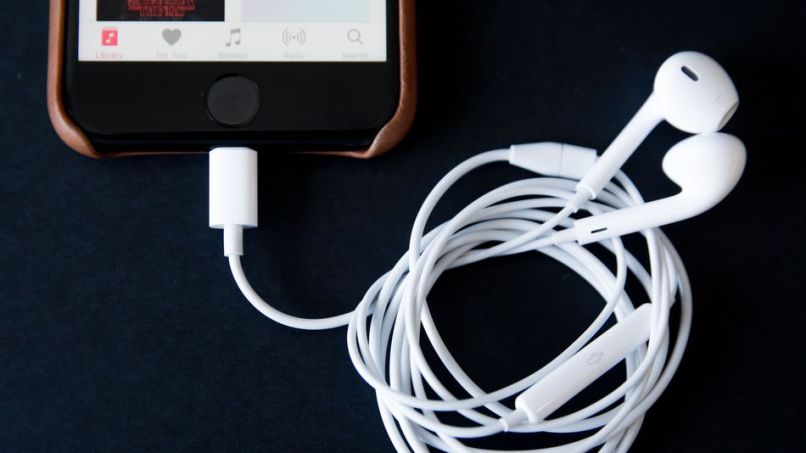
According to Apple’s tech specs, wireless audio playback uses more power than the typical audio playback we see on earlier iPhones, so if you’re going to listen to music a lot, a wired headphone could also save you out of faster iOS 10 battery drain.
#6 Turn on Airplane Mode
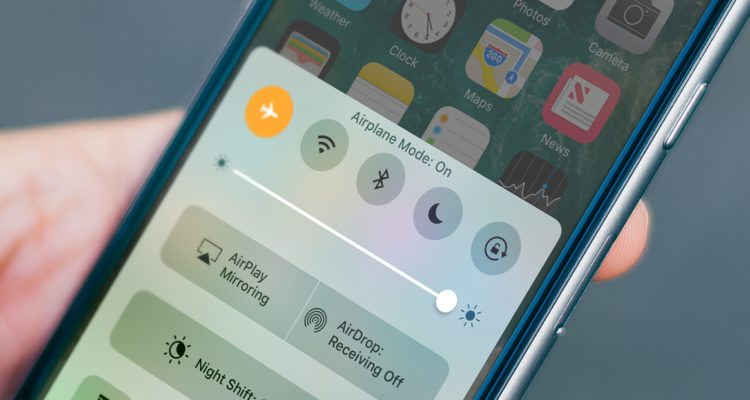
If your device is constantly searching and “pinging” for a higher-quality cell site when one isn’t available, such as when you’re riding the subway, it’s a good idea to let it rest in “airplane mode”.
 blog.easyacc.com